

You can cancel UPI AutoPay directly from apps like Google Pay, PhonePe, and Paytm by visiting the Mandates or AutoPay section and revoking the active subscription.
Once cancelled, future automatic payments linked to that mandate will stop. This is useful if you no longer use a subscription service, want to avoid unwanted deductions, or need better control over recurring payments.
The exact steps may vary slightly between apps, but the process is usually simple and takes only a few minutes.
How To Cancel Autopay In Google Pay
Follow these instructions to stop a UPI AutoPay mandate on WhatsApp:
- Open the Google Pay app.

- Click on the top right corner and go to your profile.
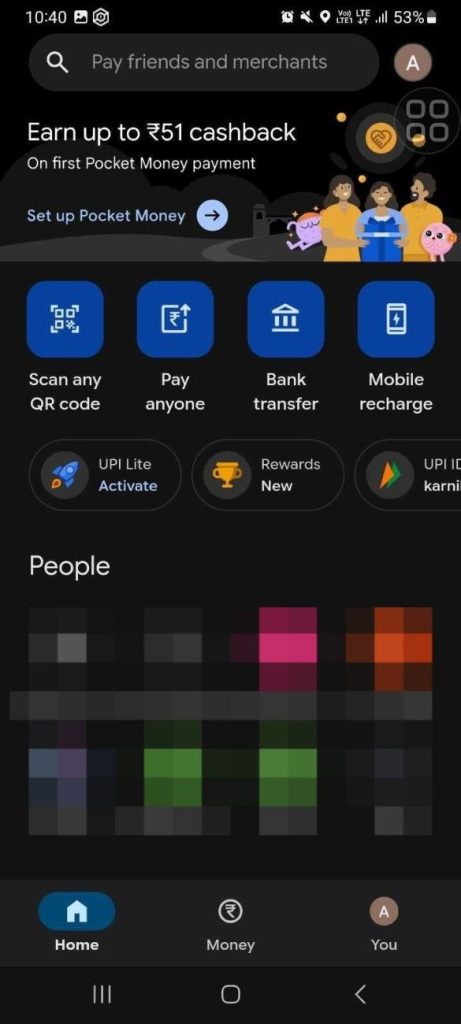
- Click on the Autopay option.
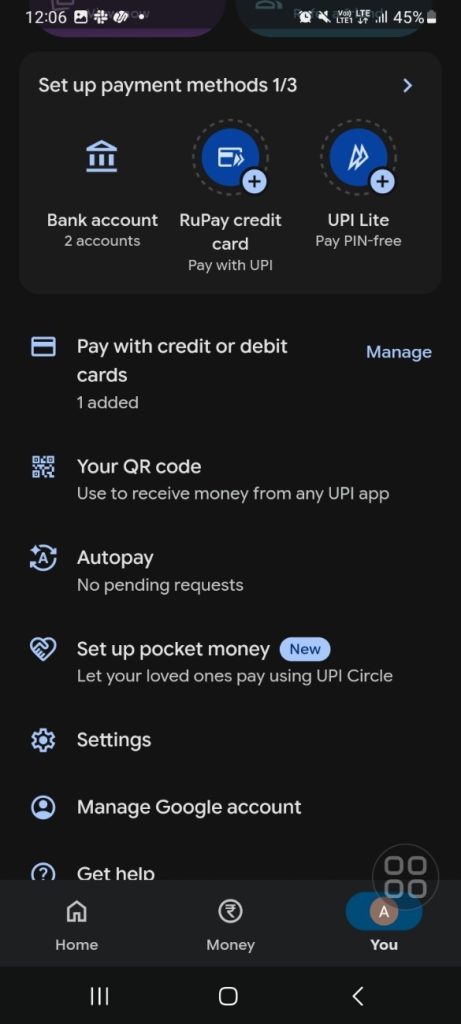
- Select the autopay you want to cancel (you can also pause it without having to cancel permanently). You will be asked to enter your UPI pin to complete the process.
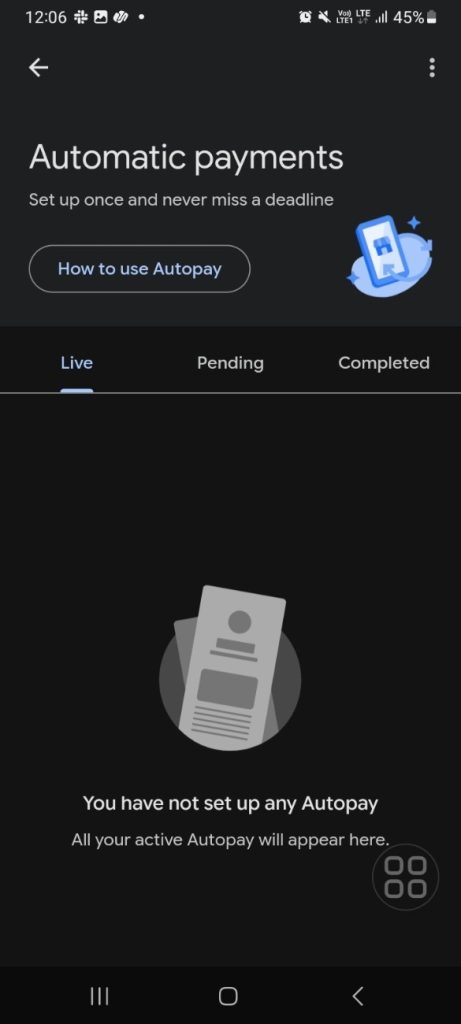
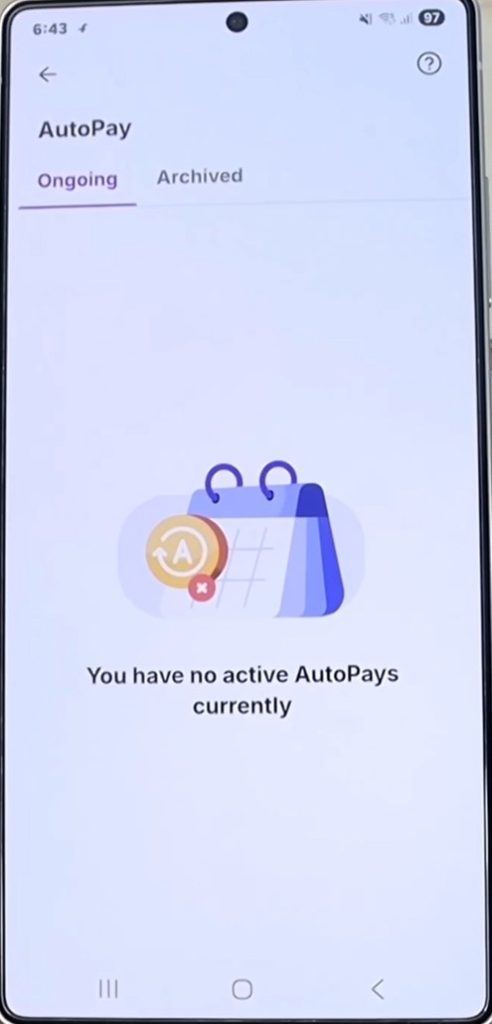
After the cancellation is successful, your autopay section may look like the one shown below.
Understand How To Cancel Autopay In Paytm
You can use the following steps to cancel a UPI AutoPay setup in Paytm:
- Open the Paytm app and tap your profile icon from the top left corner.
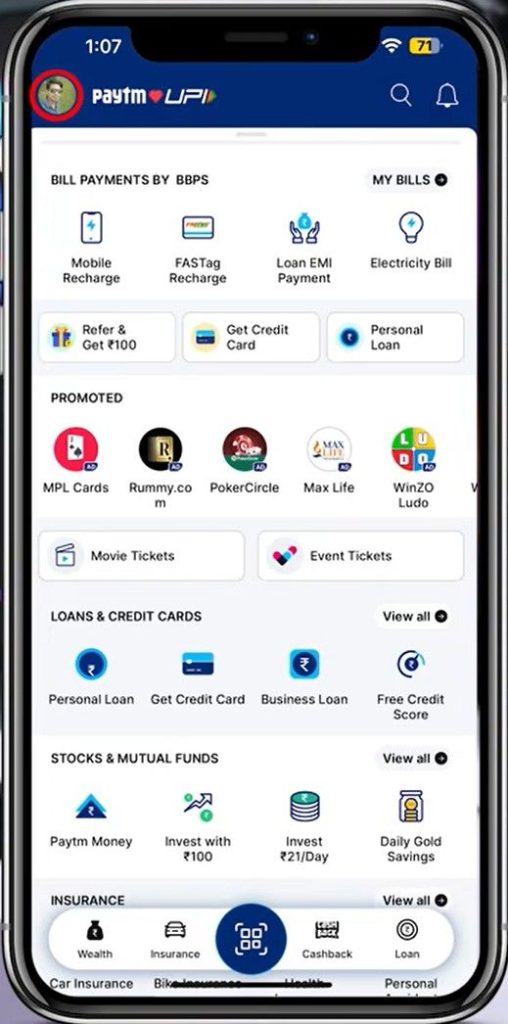
- Scroll down and select UPI & Payment Settings from the menu.
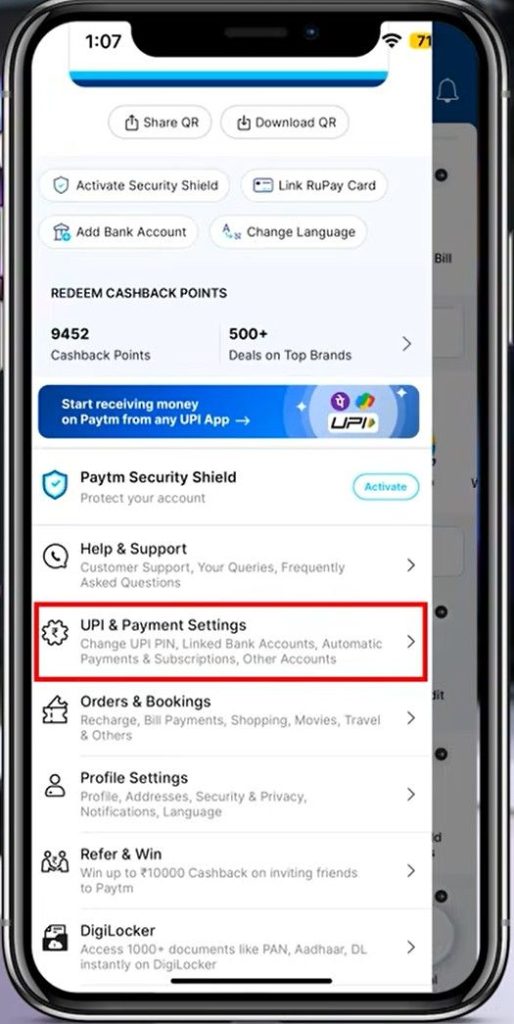
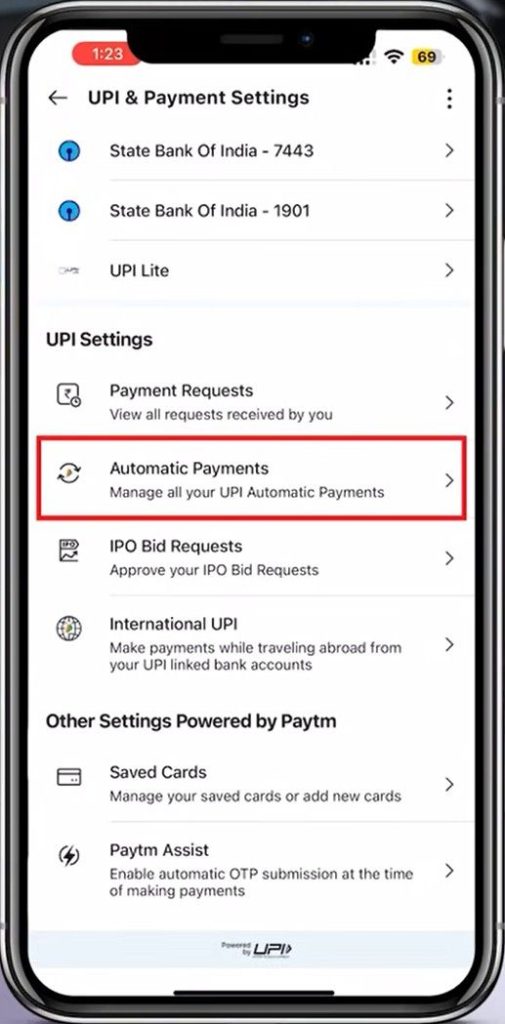
- Tap on Automatic Payments under the UPI Settings section.
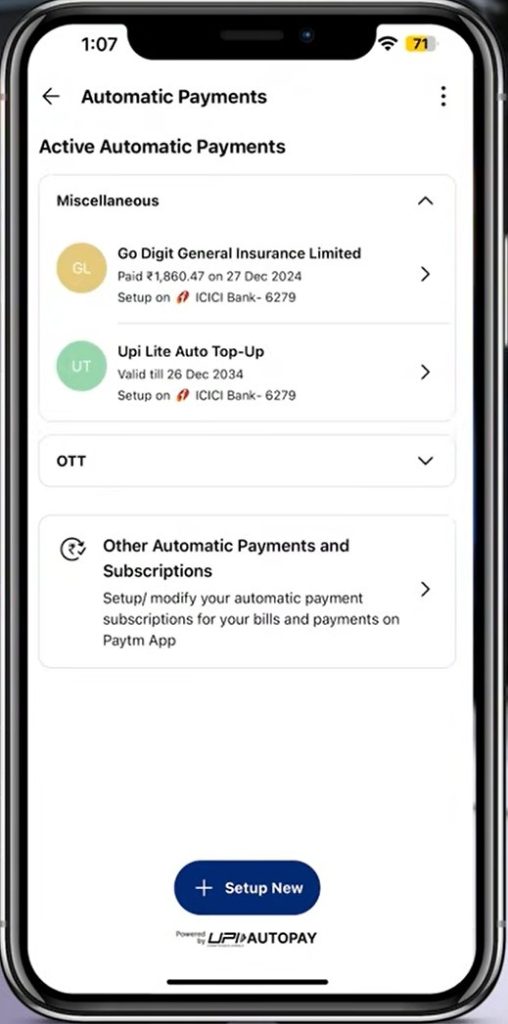
- Open the active autopay subscription you want to cancel from the Automatic Payments page.
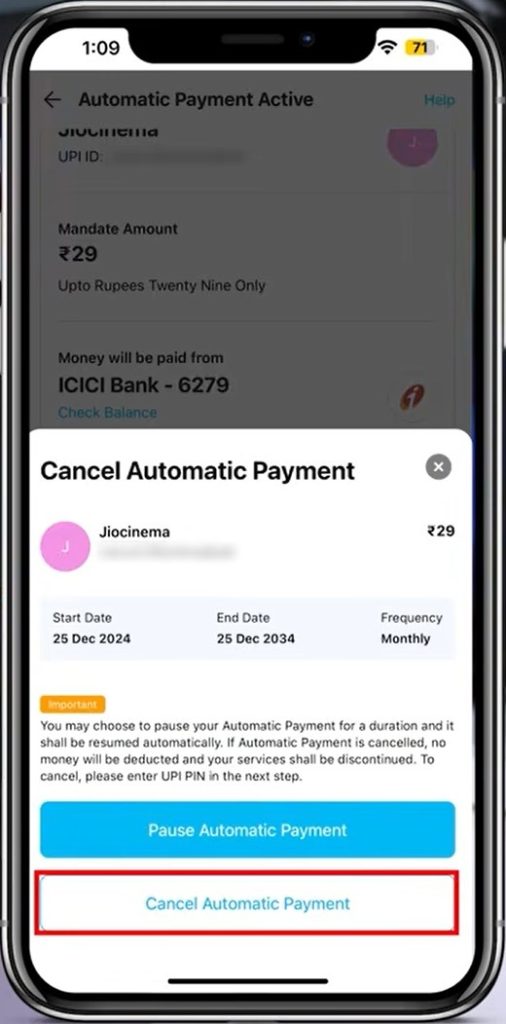
- Tap Cancel Automatic Payment from the subscription details screen.
- Enter your 4-digit UPI PIN and tap Submit to confirm the cancellation.
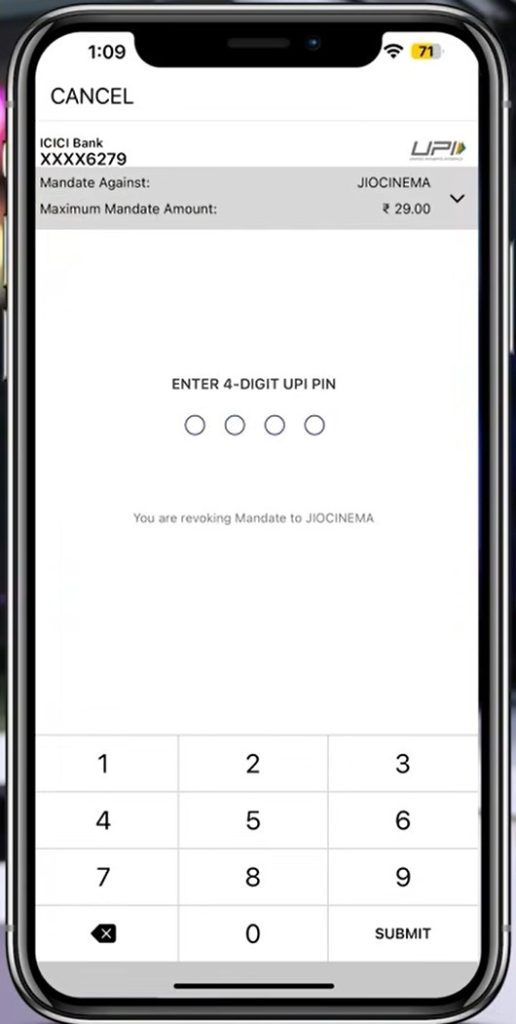
- Once the cancellation is successful, the app will display an Automatic Payment Cancelled confirmation message.
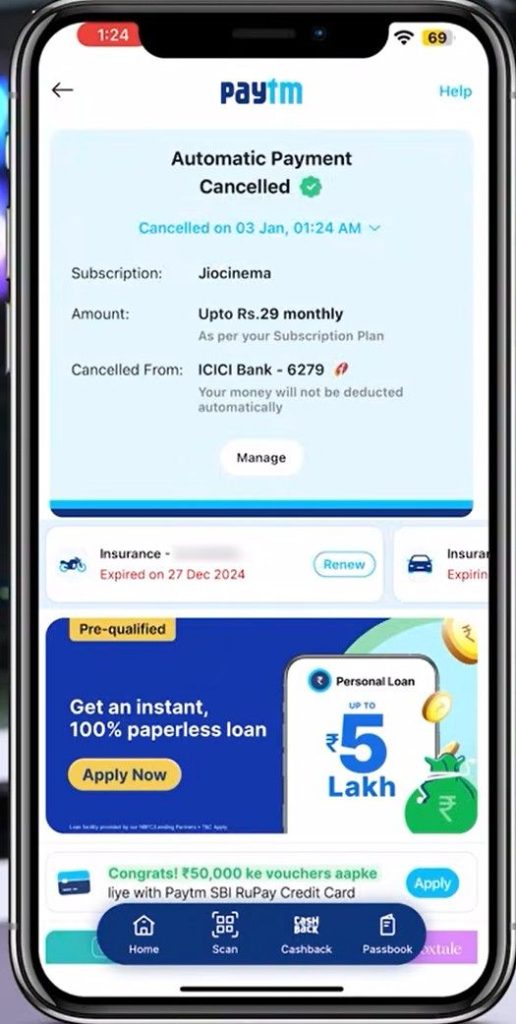
- Return to the Automatic Payments section to verify that the subscription now appears under Failed & Cancelled Payments.
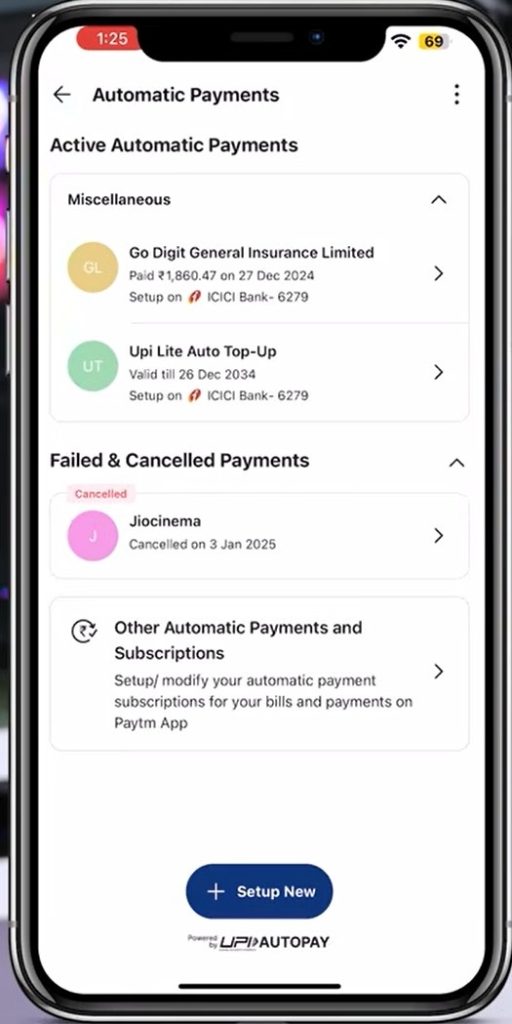
Know How To Cancel Autopay In PhonePe
Here’s how you can disable a UPI AutoPay mandate in PhonePe:
- Open the PhonePe app from your smartphone home screen.
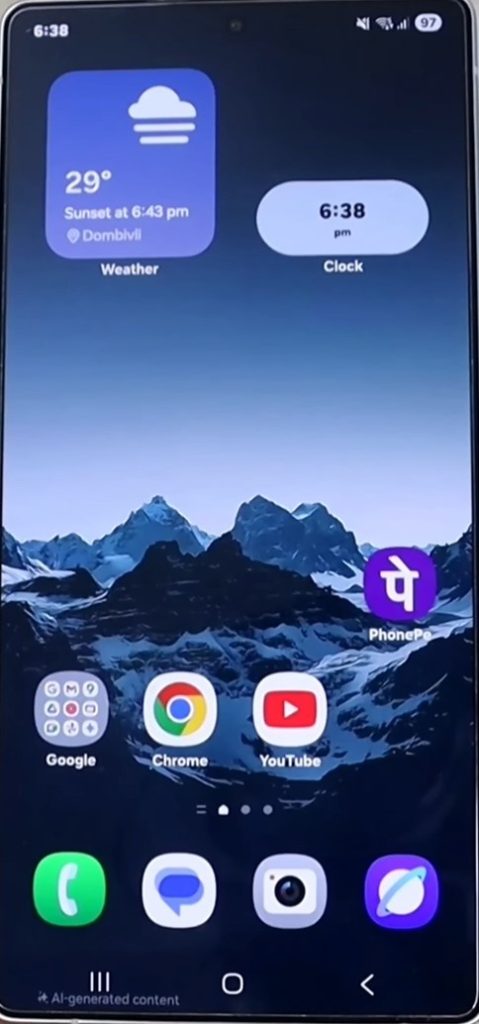
- Tap your profile picture or account section from the PhonePe home page.
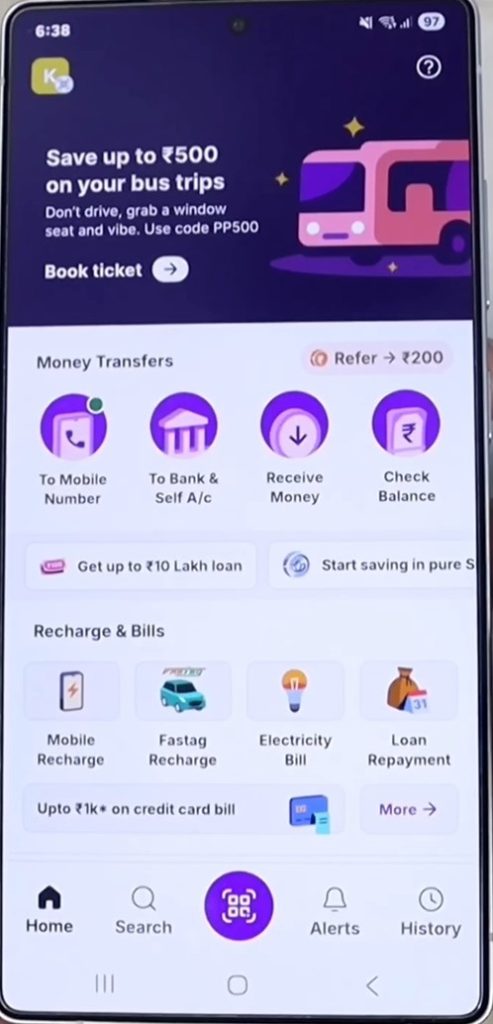
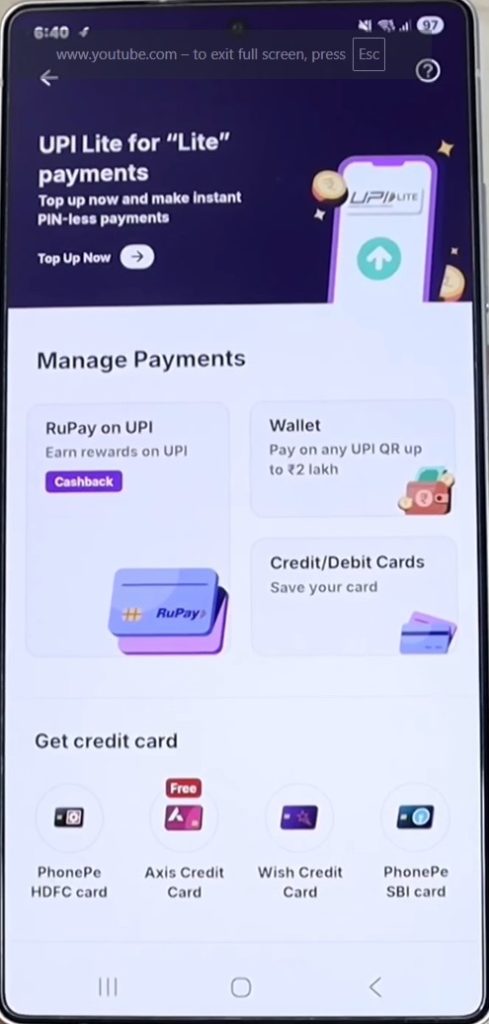
- Scroll down and select Manage Payments from the account settings page.
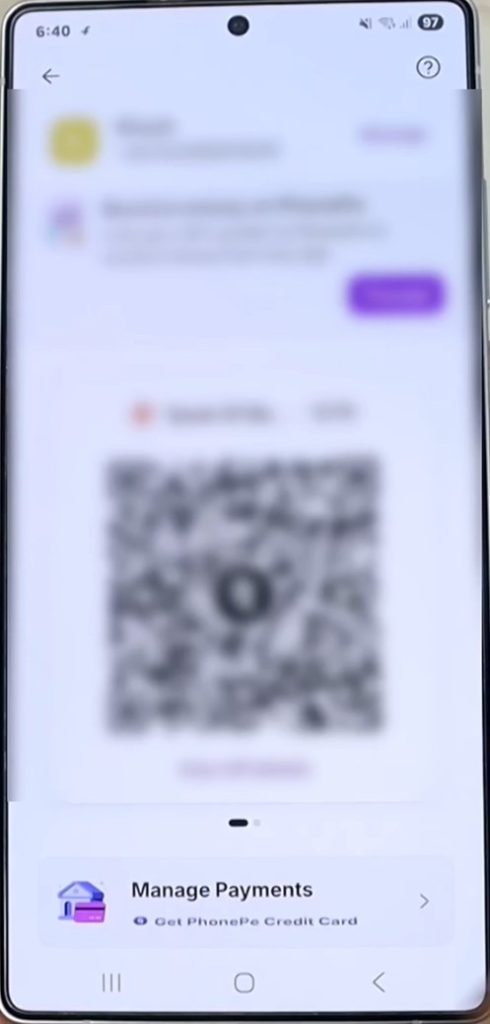
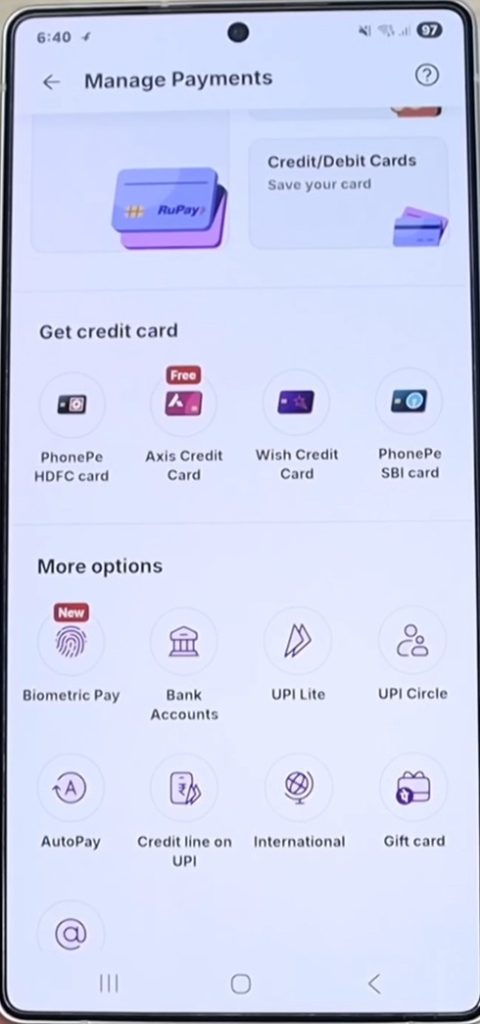
- In the Manage Payments section, scroll down to the More options area.
- Tap on AutoPay to view all your active automatic payment subscriptions.
- Select the active AutoPay subscription you want to cancel from the ongoing list.
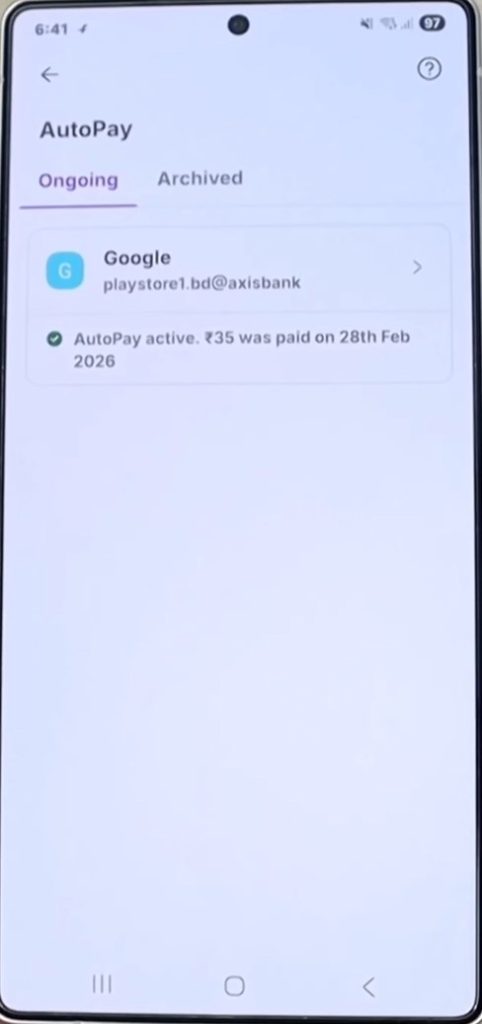
- On the AutoPay details page, review the subscription information and scroll down for more options.
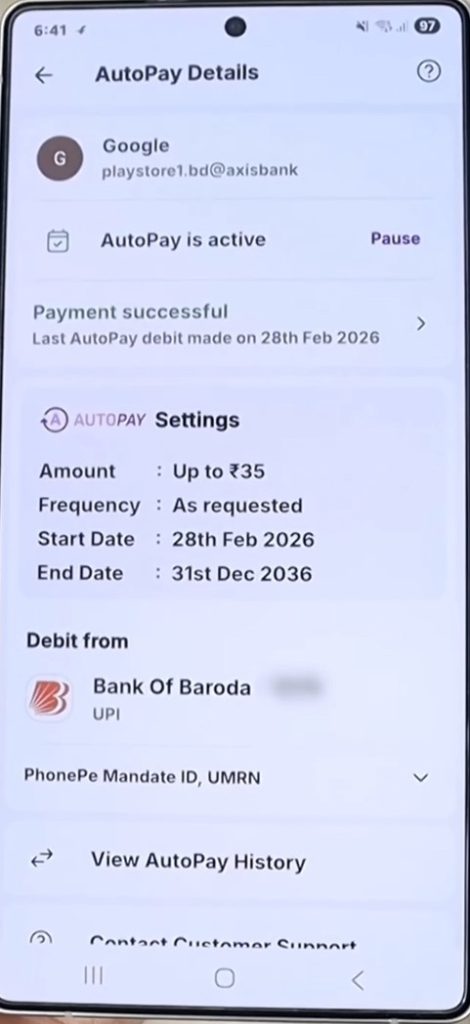
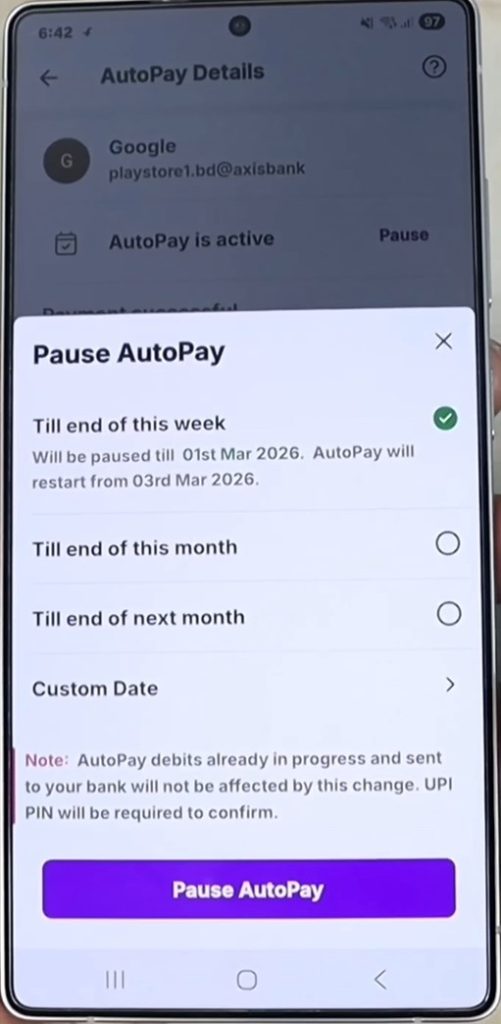
- Tap the Pause option if you want to temporarily stop the AutoPay service.
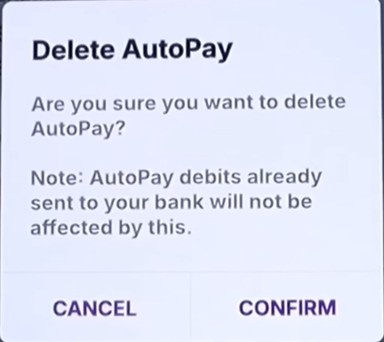
- Scroll down and tap Delete AutoPay to permanently cancel the subscription.
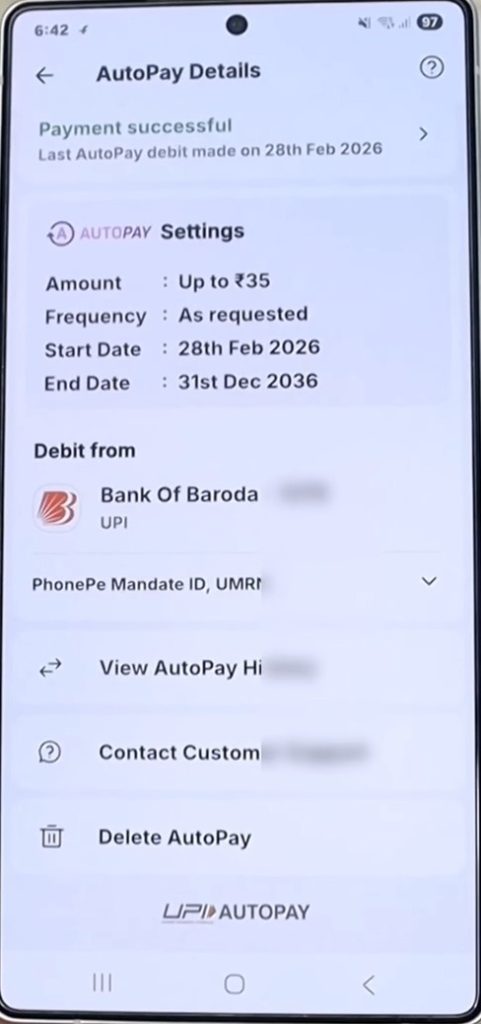
- Tap Confirm on the Delete AutoPay confirmation pop-up.
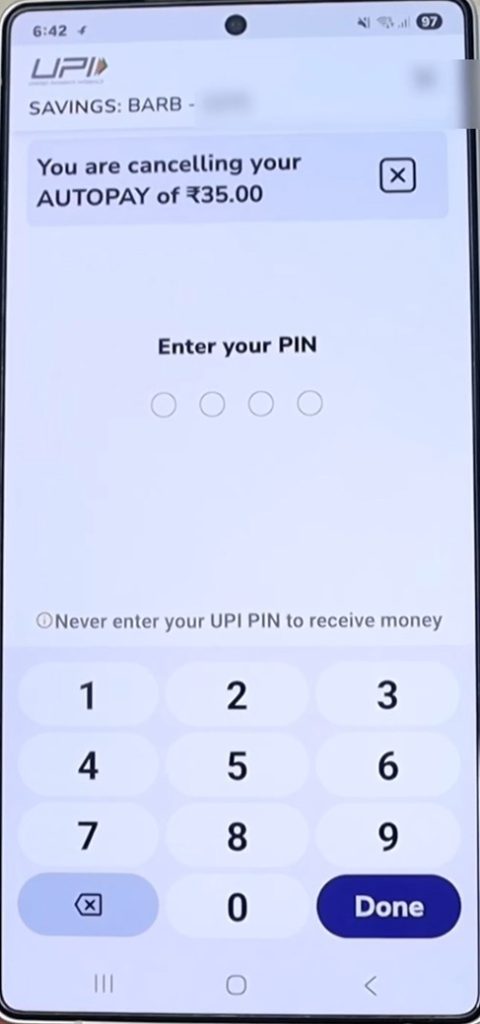
- Enter your UPI PIN to authorize and complete the AutoPay cancellation request.
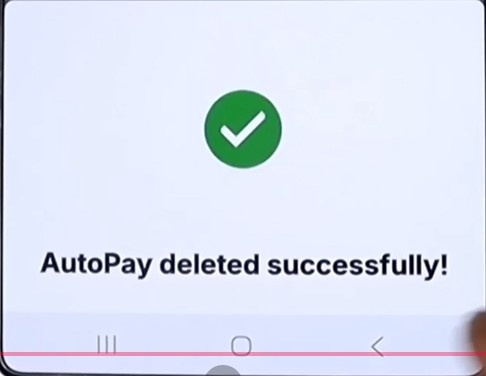
- Wait for the success message confirming that the AutoPay has been deleted successfully.
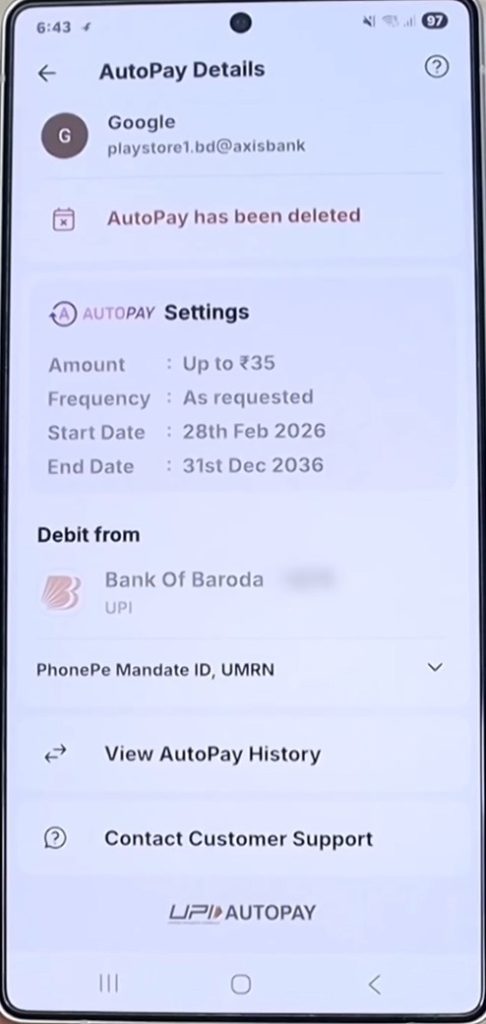
- Return to the AutoPay details page to verify that the subscription status now shows as deleted.
- Go back to the AutoPay section and confirm that there are no active AutoPay subscriptions remaining.
Common Reasons Why UPI AutoPay Cancellation Fails
Sometimes, a UPI AutoPay mandate does not get cancelled immediately even after following the correct steps. Here are the most common reasons why this happens:
1. Pending or Processing Mandate
If the AutoPay request is still in “Pending” status, the app may not allow cancellation until the bank finishes processing it. In this case, you can also file a complaint within the UPI app. Learn how to check UPI complaint status.
2. Bank Server Issues
Temporary server downtime or technical issues from your bank can prevent the cancellation request from being completed successfully.
3. Merchant Restrictions
Some merchants pause cancellation shortly before the scheduled debit date. In such cases, you may need to wait until the current payment cycle is completed.
4. Wrong UPI ID or Bank Account
If you have multiple bank accounts or UPI IDs linked in the app, you might be checking the wrong account where the mandate was created.
5. Outdated App Version
Older versions of GPay, PhonePe, or Paytm may not properly show the AutoPay or Mandate management options. Updating the app often fixes this issue.
6. Mandate Already Executed
If the scheduled payment has already been processed, cancelling the AutoPay will only stop future payments; the current debit usually cannot be reversed automatically.
7. Temporary App Glitches
Sometimes the cancellation button may not appear due to a temporary app issue. Logging out, restarting the app, or clearing cache may help.
8. Merchant-Created Standing Instructions
Certain subscriptions are managed directly by the merchant or bank rather than through standard UPI AutoPay controls. In such cases, you may also need to cancel the subscription from the merchant’s website or app.
Note: UPI Apps’ interface might vary depending on the version installed on your phone.
Conclusion: Cancel Your UPI Autopay
Cancelling UPI AutoPay is a quick way to stop recurring payments and manage your subscriptions more effectively. Whether you use Google Pay, PhonePe, or Paytm, you can disable active mandates directly from the app without contacting your bank.
If the cancellation does not work immediately, checking the mandate status, updating the app, or contacting the merchant can help resolve the issue. Regularly reviewing active UPI mandates also helps prevent unwanted automatic deductions in the future.
FAQs
To turn off UPI AutoPay, open your UPI app, such as Google Pay, PhonePe, or Paytm, and go to the AutoPay or Mandates section in your profile settings. Select the active mandate you want to stop and tap on Cancel or Revoke. You may be asked to enter your UPI PIN to confirm the cancellation. Once completed, future automatic payments linked to that mandate will stop.
You can check your active UPI AutoPay mandates directly from your UPI app under the AutoPay, Mandates, or Subscription section. Most apps show all recurring payment requests along with their status, amount, and next payment date. You can also use the NPCI Help Portal to view mandate details using your registered mobile number and OTP verification.
To check the status of a UPI AutoPay mandate, open your banking or UPI app and visit the Mandates or AutoPay section. Here, you can see whether a mandate is active, pending, paused, completed, or cancelled. This helps you track upcoming recurring payments and manage subscriptions more effectively.
Yes, UPI AutoPay is generally considered safe because it is regulated by the RBI and operated through NPCI’s secure UPI infrastructure. Users must authorize mandates using their UPI PIN during setup, and transaction alerts are sent for every automatic debit. You can also pause or cancel mandates anytime directly from your UPI app.
While AutoPay is convenient, it also has some drawbacks. Users may forget about active subscriptions and continue paying for services they no longer use. Automatic deductions can also lead to low balance issues or failed payments if there are insufficient funds in the account. In some cases, cancelling recurring payments may take extra steps depending on the merchant or payment provider.