

To reset your GPay UPI PIN, open Google Pay, tap your profile picture, go to Bank account, select your account, and tap Forgot UPI PIN.
You will need your debit card’s last six digits and expiry date or your Aadhaar number for verification. After entering the bank OTP, set a new 4- or 6-digit PIN and confirm it.
Why you may need to reset your GPay UPI PIN
A UPI PIN is the 4- or 6-digit passcode that authorises every Google Pay transaction. Without it, you cannot send money, pay bills, or check your balance.
Here are the most common reasons you may need to reset it:
- Forgotten PIN. If you have not used GPay in a while, forgetting the PIN is common.
- Entered the wrong PIN three times. Google Pay temporarily locks UPI access for 24 hours after three wrong attempts. Resetting restores access immediately.
- Suspected unauthorised access. If you shared your PIN accidentally or spot an unknown transaction, reset it right away.
- Changed your phone or SIM. Switching devices or SIM cards often requires a fresh UPI PIN setup.
- Expired debit card. A replacement card has different details. You may need to reset the PIN using the new card.
- Routine security hygiene. Updating your PIN every few months reduces the risk of compromise.
Resetting vs. changing your PIN: These are two different actions.
When you change your PIN, you enter the old PIN and then create a new one. When you reset it, you verify via debit card or Aadhaar because you no longer know the old PIN.
What You Need Before Resetting
Gather the following before you start. Missing any item will stall the process.
| Requirement | Why It Is Needed |
|---|---|
| Latest version of Google Pay | Older versions may not show the reset option |
| Registered mobile number (active SIM) | Your bank sends the OTP to this number |
| Debit card linked to the account | You enter the last 6 digits and the expiry date |
| Aadhaar number (alternative) | Only if your bank supports Aadhaar-based reset |
| Stable internet connection | Verification requires real-time bank communication |
Your registered mobile number is the one your bank has on file. It may differ from your Google account number.
If these numbers are different, keep the bank-registered SIM in your phone during the reset.
Step-by-step process to reset GPay UPI PIN
There are different methods to reset your UPI PIN depending on your bank and available verification options, such as debit card or Aadhaar-based authentication.
Method 1: Reset Using Debit Card (Most Common)
This works for all banks. It is the standard process recommended by Google Pay.
1. Open the Google Pay app on your Android or iPhone.
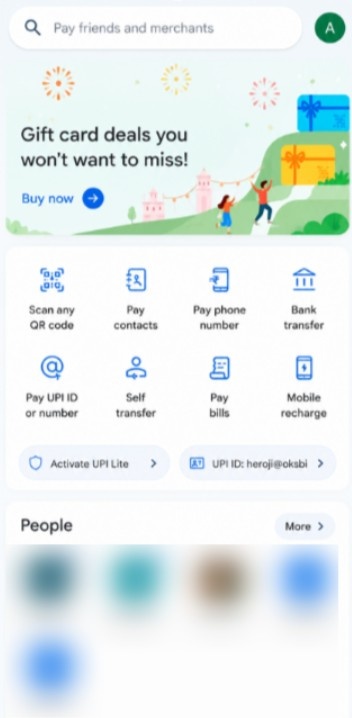
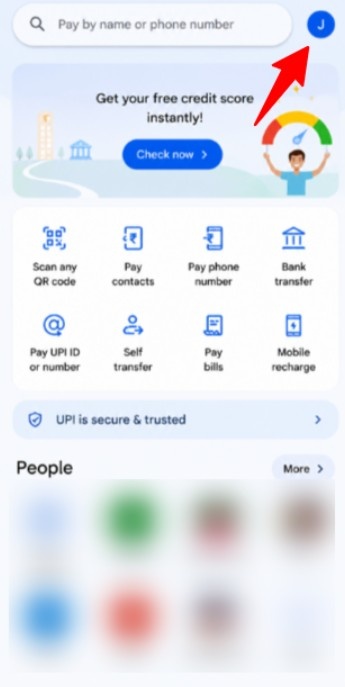
2. Tap your profile picture in the top right corner.
3. Tap Bank account under payment methods.
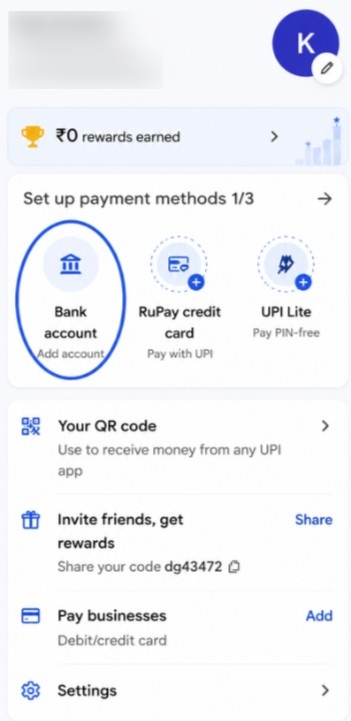
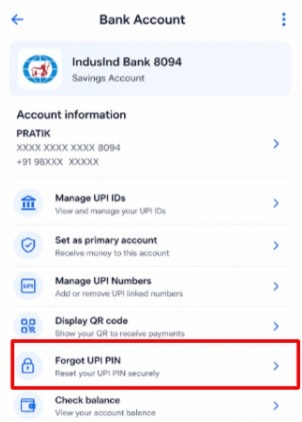
4. Select the bank account you want to reset.
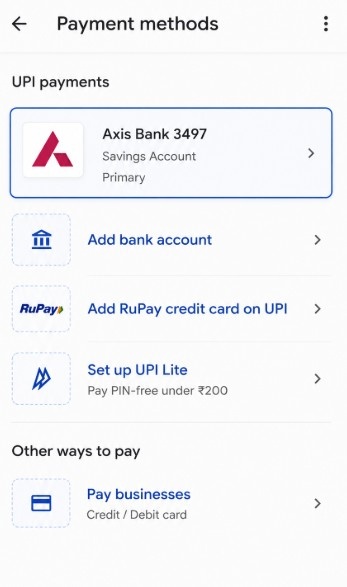
5. Tap Forgot UPI PIN.
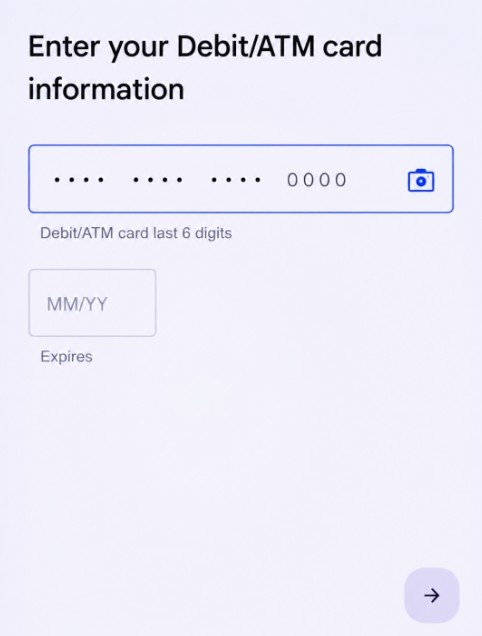
6. Enter the last 6 digits of your debit card number.
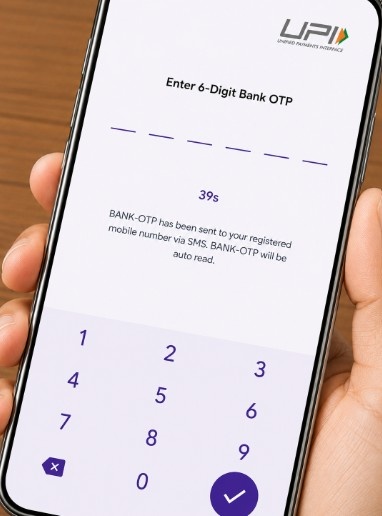
7. Enter the 6-digit OTP your bank sends to your registered number.
8. Create your new UPI PIN (4 or 6 digits, depending on your bank).
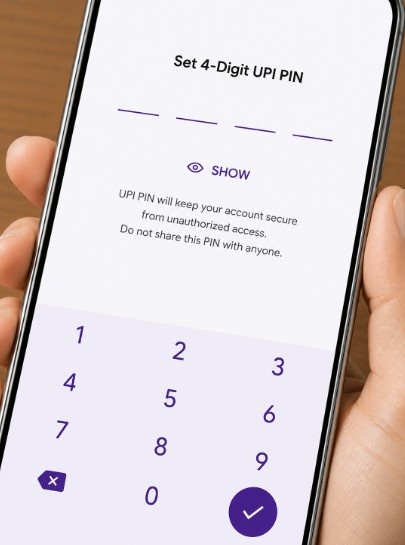
9. Re-enter the new PIN to confirm.
Your new PIN activates immediately. You can start making payments right away.
Already know your current PIN? The process is shorter.
Tap the three-dot menu on your bank account page and select Change UPI PIN. Enter your old PIN, then set a new one. No debit card details or OTP are needed.
Method 2: Reset Using Aadhaar (Without Debit Card)
If your debit card is lost or expired, some banks allow Aadhaar-based UPI PIN reset. This is helpful when you do not have a physical card.
1. Follow Steps 1 through 5 from Method 1 above.
2. Choose the Aadhaar verification option instead of a debit card.
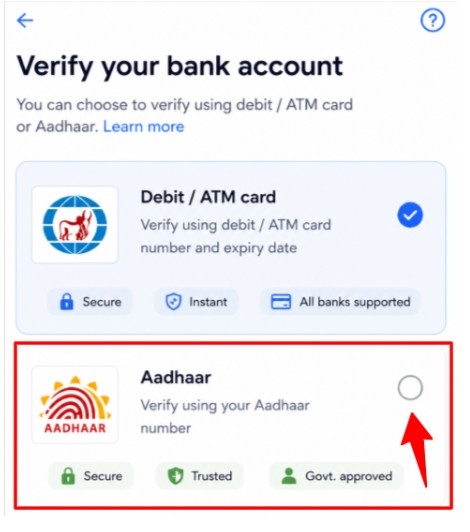
3. Enter the first 6 digits of your Aadhaar number.
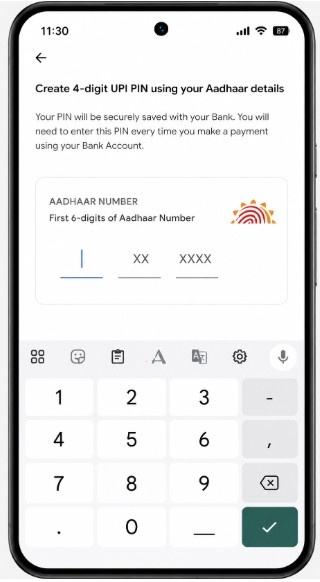
4. An OTP will be sent to the mobile number linked to your Aadhaar via UIDAI.
5. Enter the OTP and set your new UPI PIN.
Important condition: This method only works if you originally registered your bank account on GPay through Aadhaar.
If you used a debit card during initial setup, you must use a debit card for the reset as well.
Banks like SBI, Bank of Baroda, and Bank of India support Aadhaar-based resets. Several private banks have also started offering this option.
Check with your bank if the Aadhaar option does not appear in the app.
Users sometimes confuse which card details are needed. For UPI PIN reset, you specifically need a debit card. If you are unclear about the differences between a credit card and a debit card, our detailed guide can help.
Common issues while resetting GPay UPI PIN and quick fixes
Technical glitches or incorrect inputs can cause the reset to fail. Here are the most common problems and solutions.
| Issue | Likely Cause | Quick Fix |
|---|---|---|
| “Forgot UPI PIN” is not visible | Outdated app version | Update GPay from the Play Store or the App Store |
| OTP not received | Inactive SIM or weak signal | Ensure the registered SIM is active with the network |
| “Invalid card details” error | Wrong card number or expiry | Re-check the last 6 digits and MM/YY on the card |
| Account temporarily locked | Wrong PIN entered 3+ times | Wait 24 hours or reset immediately |
| Reset fails repeatedly | Bank server downtime | Try again after 30 to 60 minutes |
| Aadhaar option missing | The bank does not support it | Use the debit card method or contact the bank |
App cache problems can also cause errors. Clear the cache from your phone settings, restart the app, and try again.
If nothing works, the issue is likely on your bank’s end. Contact customer support or visit DigiSaathi for helpline numbers.
How to Fix OTP or Verification Failure During GPay UPI PIN Reset
OTP failures are the most common roadblock during a reset. Here is what typically goes wrong and how to fix it.
- OTP is not arriving at all: The bank sends the OTP to your bank-registered mobile number, not your Google account number.
If these numbers are different, the OTP goes to a SIM you may not have in your phone. Confirm the registered number via your bank’s app or customer care.
- OTP arrives, but verification fails: This usually happens because the OTP has expired. Bank OTPs are valid for 3 to 5 minutes only. Enter the code as soon as it arrives.
- Dual-SIM OTP routing: On dual-SIM phones, the OTP may arrive on the non-default SIM. Check messages on both SIMs before retrying.
- A weak network is causing delivery delays: Poor mobile signal can block SMS delivery entirely. Switch to an area with better coverage, or toggle between Wi-Fi and mobile data.
- Card verification fails with correct details: If your bank recently reissued your card, the last 6 digits or expiry date may have changed. Always use the details from the newest card.
When managing multiple accounts, it helps to check your card balance first. This confirms you are using the right active card.
How to Reset GPay UPI PIN Without a Debit Card
Not having a debit card does not mean you are stuck. Here are your alternatives.
- Use Aadhaar verification: As covered in Method 2, this works if your bank supports it and your Aadhaar is linked to your bank and mobile number.
- Request a replacement card: Many banks now issue virtual debit cards instantly through their mobile banking apps. You can use the virtual card’s details for the reset.
- Visit your bank branch: If no digital option works, carry your passbook, Aadhaar, and PAN card. The bank can reset your UPI PIN through its internal systems.

- Add a different bank account: If the reset is urgent, add another bank account with an active debit card to GPay. Set a new UPI PIN for that account while you resolve the primary card issue.
Some users wonder if they can use their card at an ATM to reset the UPI PIN. The answer is no. UPI PIN and ATM PIN are completely separate systems.
Safety tips while creating a new GPay UPI PIN
Choosing a strong replacement PIN matters just as much as resetting it. NPCI officiallly states that your UPI PIN should never be shared with anyone.
- Avoid predictable PINs: Do not use your birth year, phone number, or sequences like 1234. These are the first combinations fraudsters attempt.
- Never reuse PINs: Keep your UPI PIN different from your ATM PIN, screen lock, and other numeric passwords.
- Do not share your PIN: No bank, app, or support agent will ever ask for it. Any such request is a scam.
- Reset periodically: Change your PIN every 3 to 4 months, even without a specific security concern.
- Skip public Wi-Fi: Open networks can be intercepted. Use mobile data or a private network for PIN-related activity.
- Enable device security: Set up fingerprint, Face ID, or a strong screen lock. This protects your account if the phone is lost.
- Monitor transactions regularly: If you spot an unauthorised payment, reset the PIN immediately and report it to your bank.
Understanding the advantages of different payment methods helps you decide which accounts to prioritise and keep secured.
Conclusion: Reset your GPay UPI PIN using a Debit Card or Aadhaar verification
Resetting your GPay UPI PIN takes under two minutes when you have the right details ready.
Whether you use the debit card method or Aadhaar verification, the process restores access quickly and securely. Always choose a strong, unique PIN that is not easy to guess.
Reset it every few months and never share it with anyone. If errors persist, contact your bank’s customer support or visit DigiSaathi for help.
FAQs
Yes. UPI operates 24/7, including weekends and holidays. You can reset anytime unless your bank’s server is under maintenance.
Yes. The PIN is tied to your bank account, not the app. If you reset it on GPay, the new PIN applies to PhonePe, Paytm, BHIM, and all other linked UPI apps.
No. Already processed or queued transactions are not affected. The new PIN applies only to future payments.
There is no fixed limit from NPCI. However, multiple rapid attempts with incorrect details may trigger a temporary cooldown from your bank.
No. They would also need the OTP sent to your registered mobile number. Without the OTP, the reset cannot be completed.